Click without using the camera
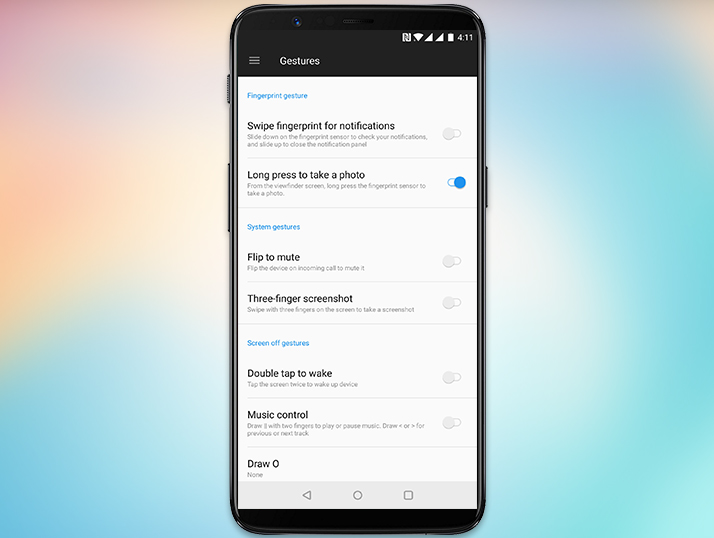
You can take a photo or selfie by long pressing the fingerprint sensor from the viewfinder screen. To enable go to Settings > Gestures > Long press to take a photo.
Just a swipe down away
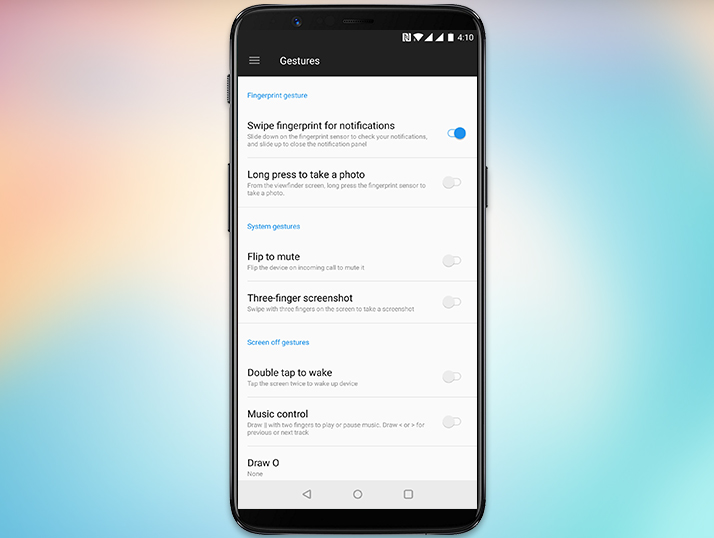
Swipe down on the fingerprint sensor and pull down the notification shade. To enable go to Settings > Gestures > Swipe fingerprint for notifications.
Easy accessibility
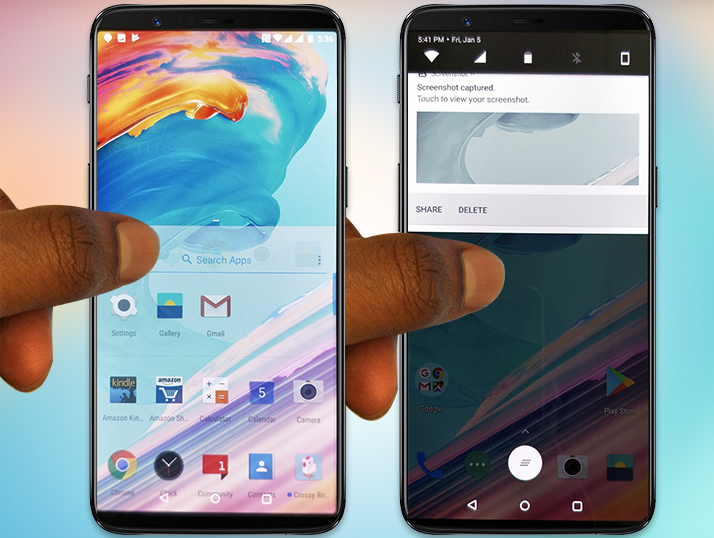
Swipe up or down anywhere on the screen to access the notification shade or app drawer.
More power to gestures
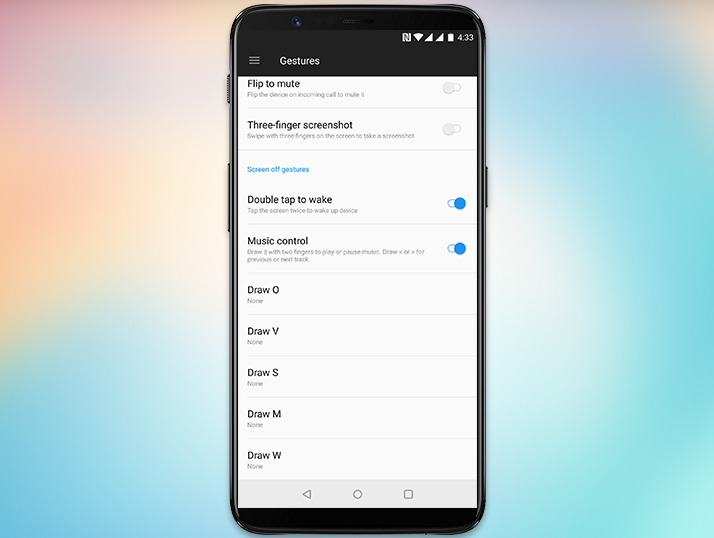
Easily manage the most commonly accessed features of your phone without unlocking your screen. To enable Settings > Gestures > Screen off gestures submenu.
• Double tap to wake: tap the screen twice to wake up your device
• Music control: draw || with two fingers to play or pause music. Draw < or > for previous or next track
• Drawing letters O, V, S, M and W can activate assigned apps or functions such as opening the flashlight.
True comfort for your eyes
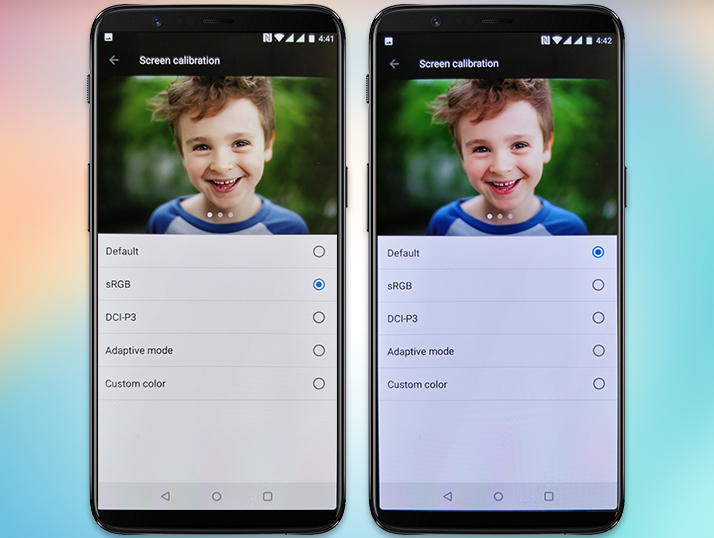
Choose between default, sRGB, DCI-P3 and adaptive mode, which creates a more comfortable viewing experience and adjusts color temperature based on ambient light. To enable go to Settings > Display > Screen Calibration.
Lift Up Display
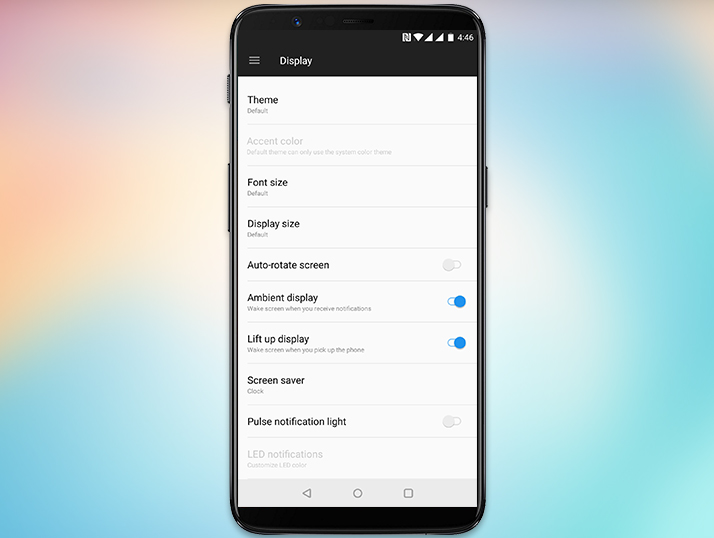
Wake the ambient display when you pick up your phone or take it out of your pocket without clicking on any other button. To enable go to Settings > Display > Ambient display and Lift up display.
Three-Finger Screenshot
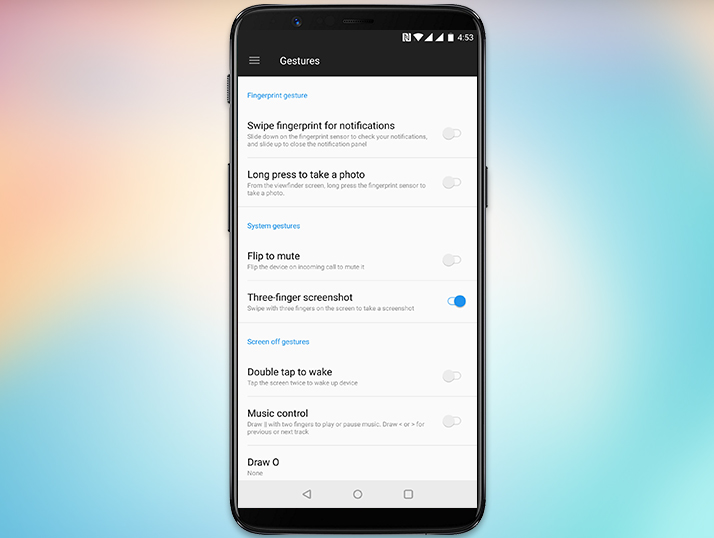
Swipe with three fingers to take a screenshot. To enable go to Settings > Gestures > Three-finger screenshot.
Hidden Navigation Bar
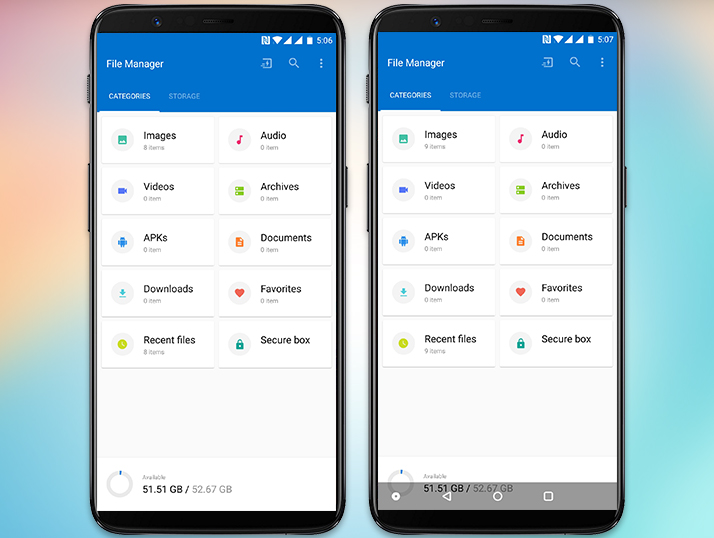
When in-app, the navigation bar automatically disappears for a more immersive viewing experience. Once the bar is hidden, a swipe up from the bottom of the display will restore the navigation bar. To enable go to Settings > Buttons > Hide the navigation bar.
OnePlus5T - Tips & tricks
![OnePlus5T - Tips & tricks]() Reviewed by Hhhhhhhbssh
on
February 19, 2018
Rating:
No comments: